
Help with a diorama
A diorama is a place to wander. Here is how to move through one, what to do if something looks wrong, and how to reach a person.
The quick guide
Everything you need, in five steps. The rest of this page shows it in pictures.
- It plays by itself. Each stop opens its card on its own. If it starts on a board of tiles, tap one to begin there.
- Tap any thumbnail in the strip to jump to that stop.
- Close a card with its ✕︎.
- Hold the moment: press Space, or Pause at the top of the Atlas.
- Anything odd? ⚙︎ gear → Reset. Still odd? Reload the page, or reach a person.
Each diorama is set up by its maker, so yours may not show everything here. For the guide to your own diorama, tap ? in its corner.
What’s on screen
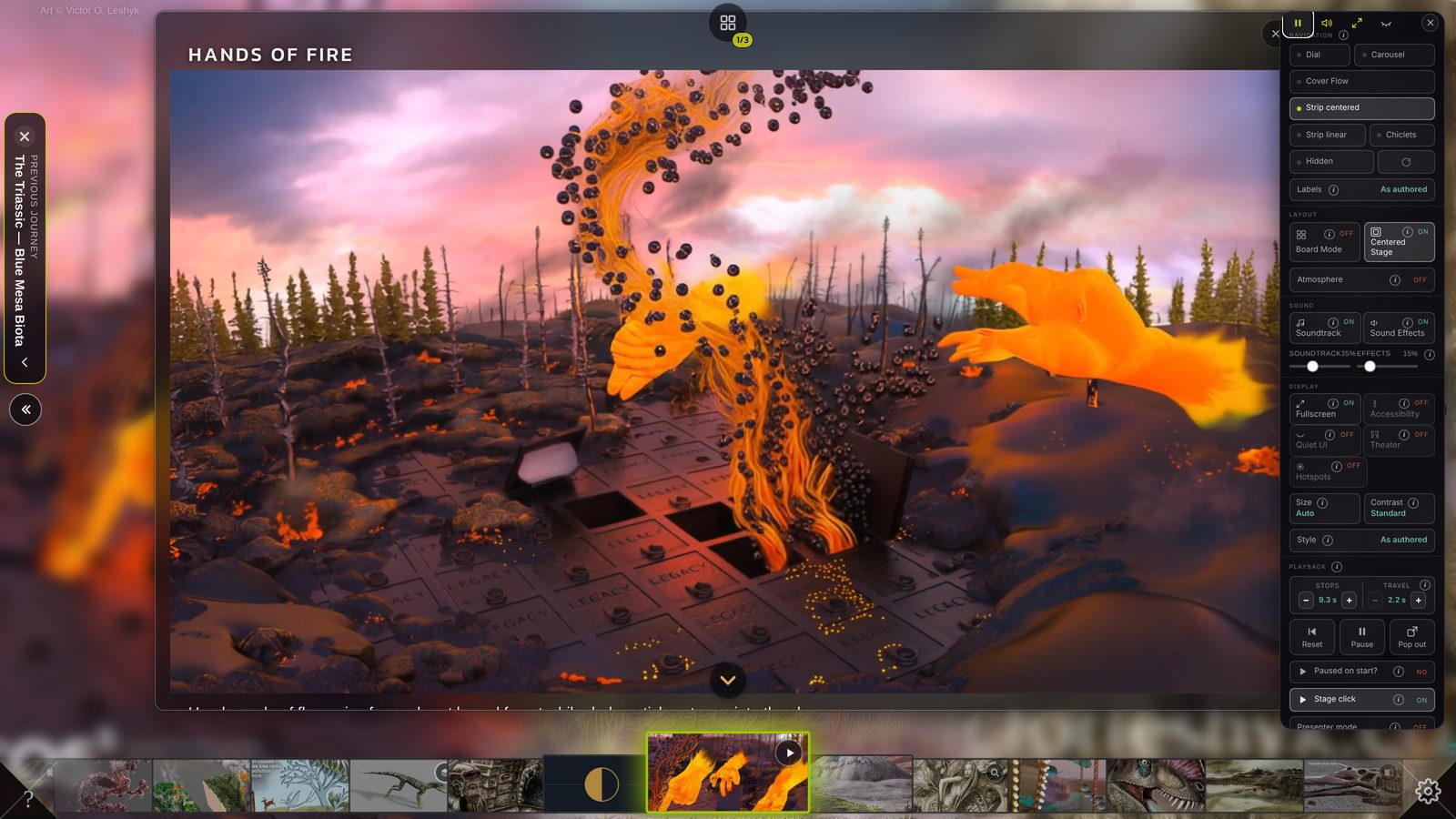
A running diorama, with its parts numbered.
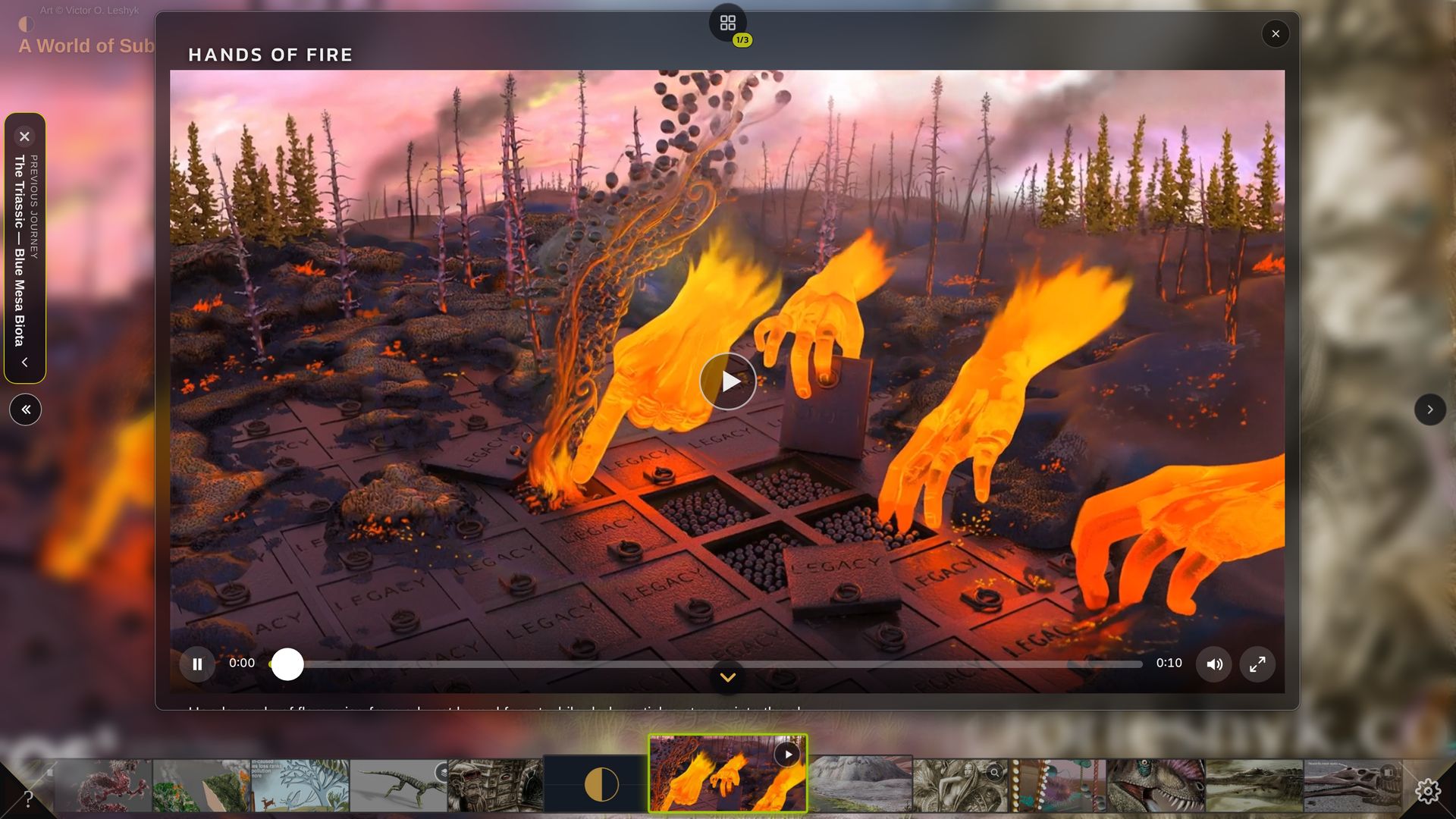
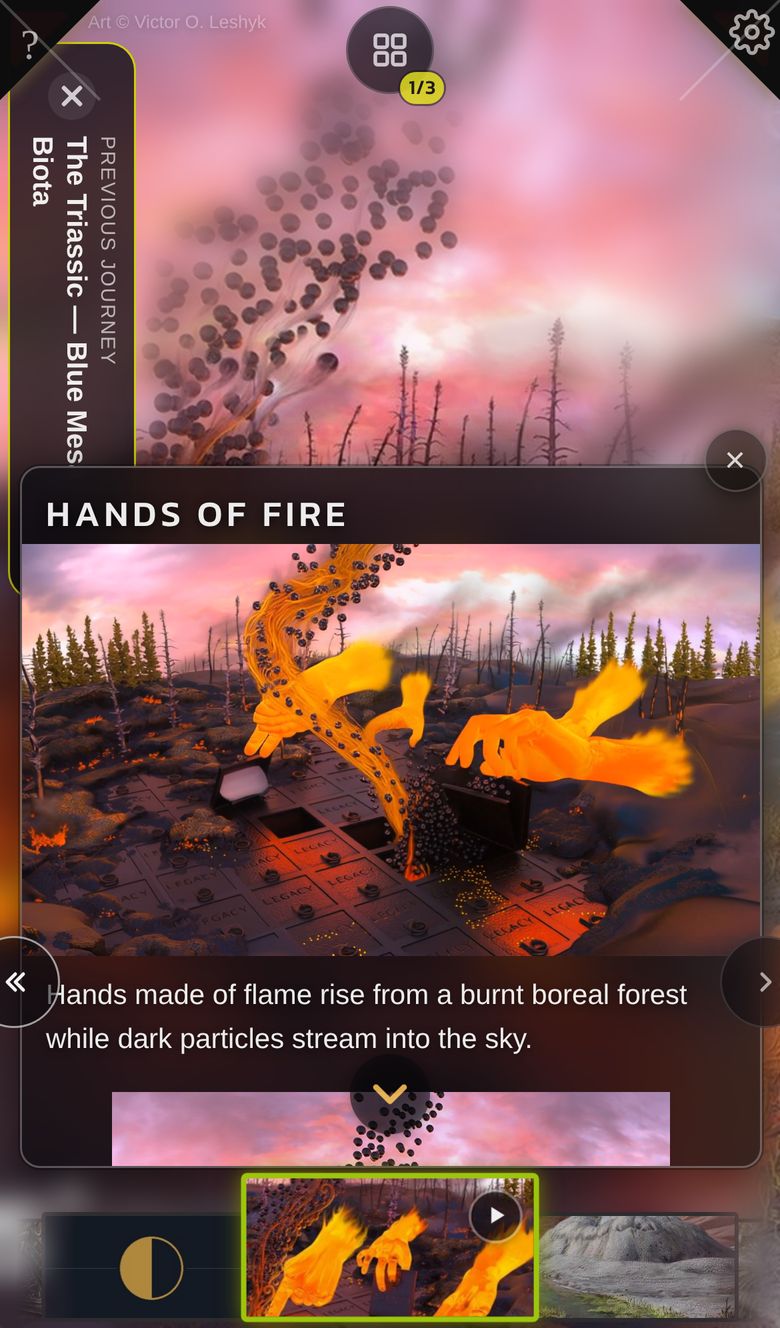
- Journey title. Shows as each journey begins, and now and then.
- Atlas. Every scene, as tiles.
- Card. A card opens at each stop: title and picture first.
- Close. Its ✕︎ closes the card.
- More below. The gold arrow means there is more to read. Scroll inside the card.
- Video bar. On a card with a video: pause, move to any moment, sound.
- Strip. The bright thumbnail is where you are. Tap a thumbnail in the strip to go straight to that stop.
- Arrows. Swipe the picture, or use the arrows at the sides of the screen, for the next or the previous stop.
- Journey sign. If there are several journeysThe sign at the edge of the screen names the next one.
- ? Help. The tips and the guide. In a corner: bottom left on a big screen, top left on a phone.
- ⚙︎ Controls. The gear panel, below. In the opposite corner from Help.
Numbers 1 and 6 are not in this phone picture: the title comes and goes, and the video bar shows when a video is playing.
Screens from the Diorama Engine demo. Artwork by Victor O. Leshyk.
Getting around
Wander or be led. A diorama will carry you from stop to stop, and it lets you step off the path whenever something calls to you.
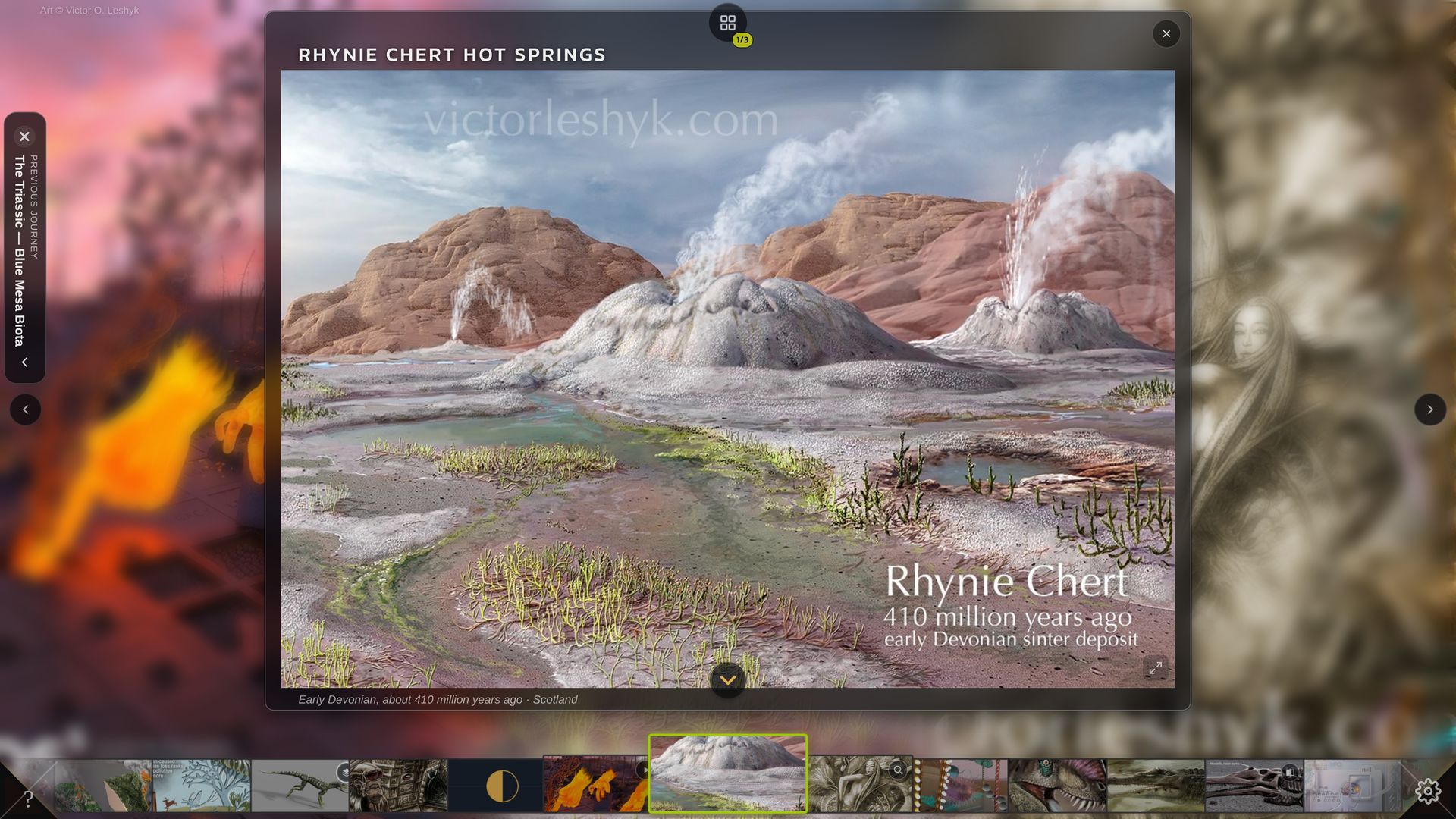
Stops and cards
- A card opens at each stop. Scroll inside it when there is more below; its ✕︎ closes it.
- If a card has oneTap a picture or a video in a card to see it full screen.
- Tap a thumbnail in the strip to go straight to that stop.
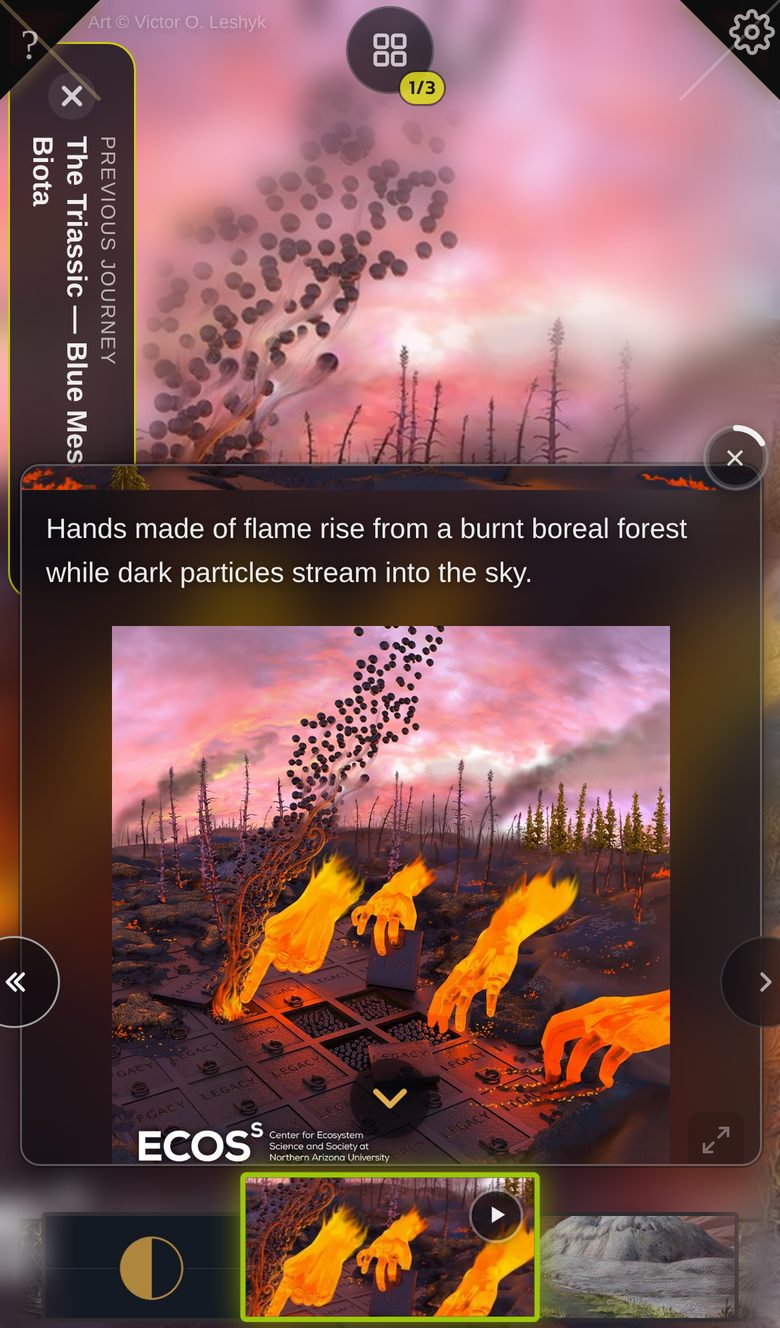
More below
Pictures come first and the words follow. When the gold arrow shows at the bottom of a card, scroll inside the card to read on.
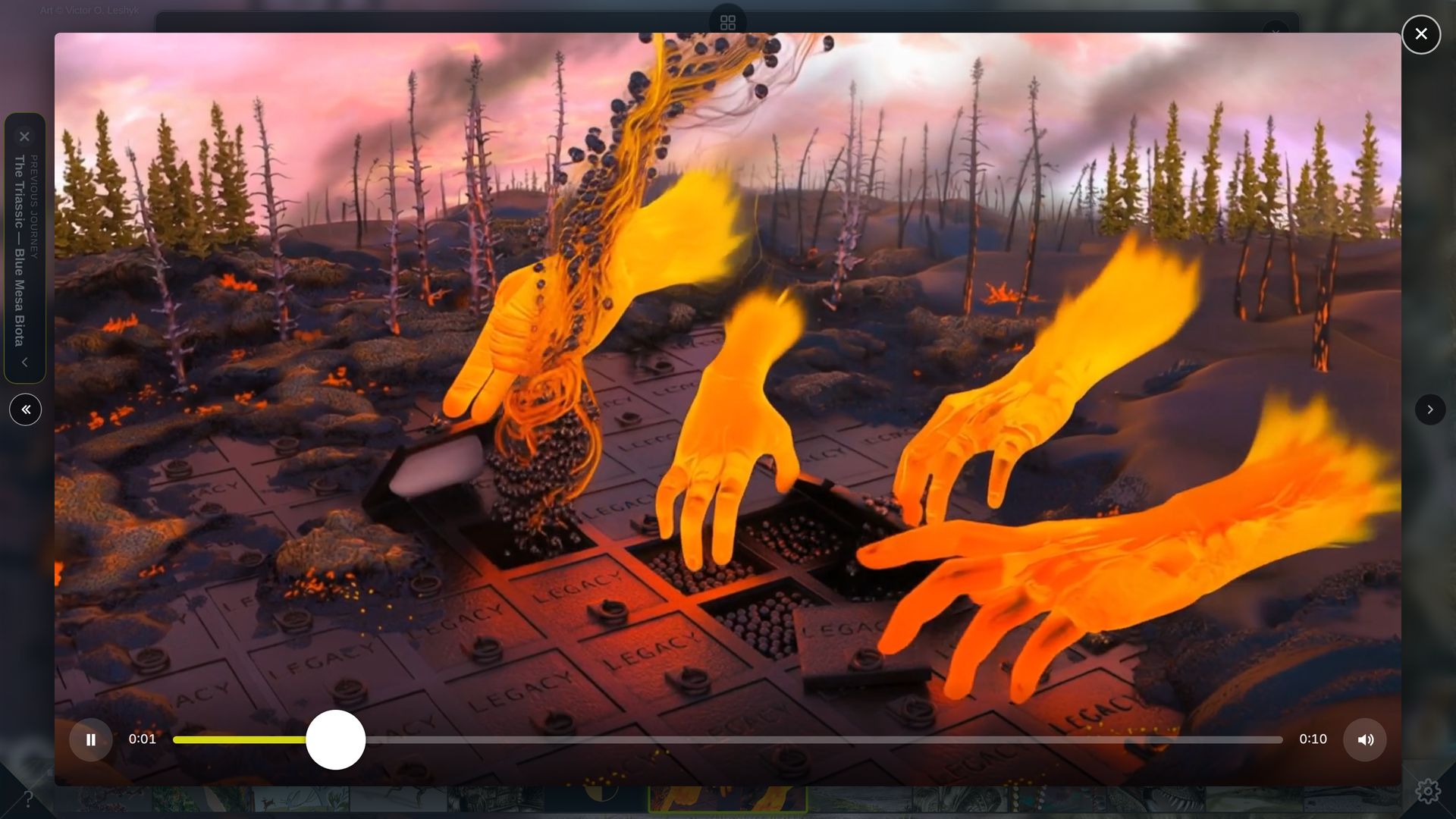
Video, full screen
If there is a videoIn a full-screen video the bar underneath pauses it, moves to any moment and turns the sound on.
- Pause or play
- Drag to any moment
- Sound on or off
- Its ✕︎ closes it, or press Esc
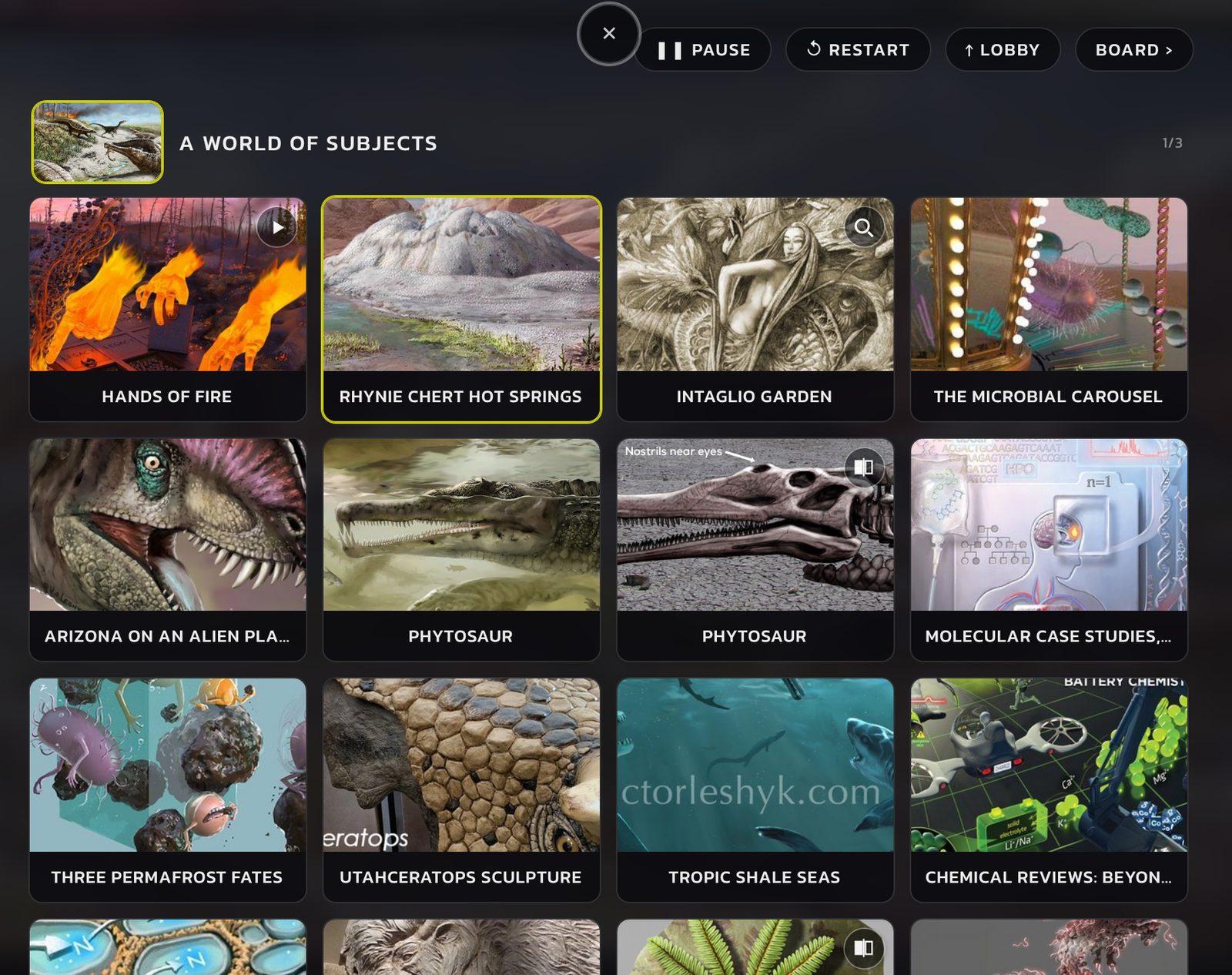
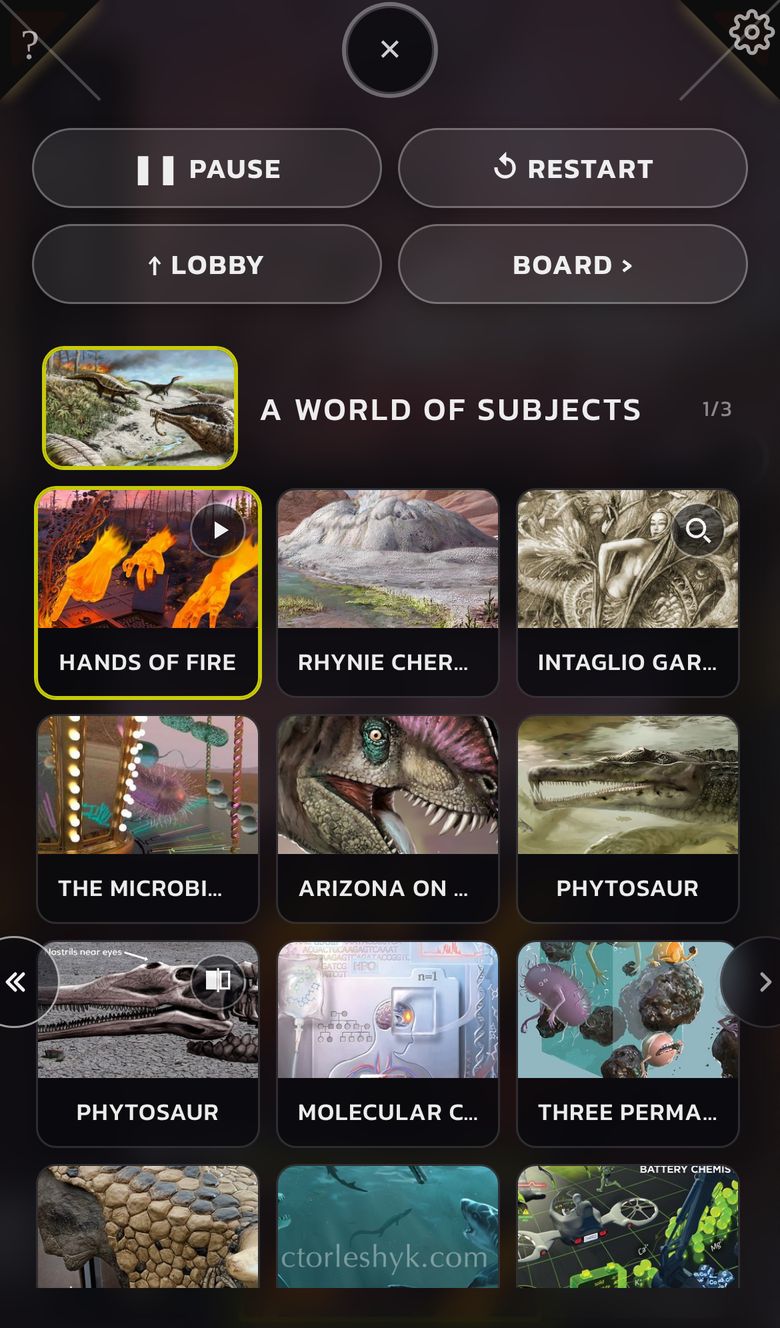
The Atlas
Every scene, as tiles. Tap one to go there. Its header has Pause, Restart and Lobby, for when you want to hold still or begin again.
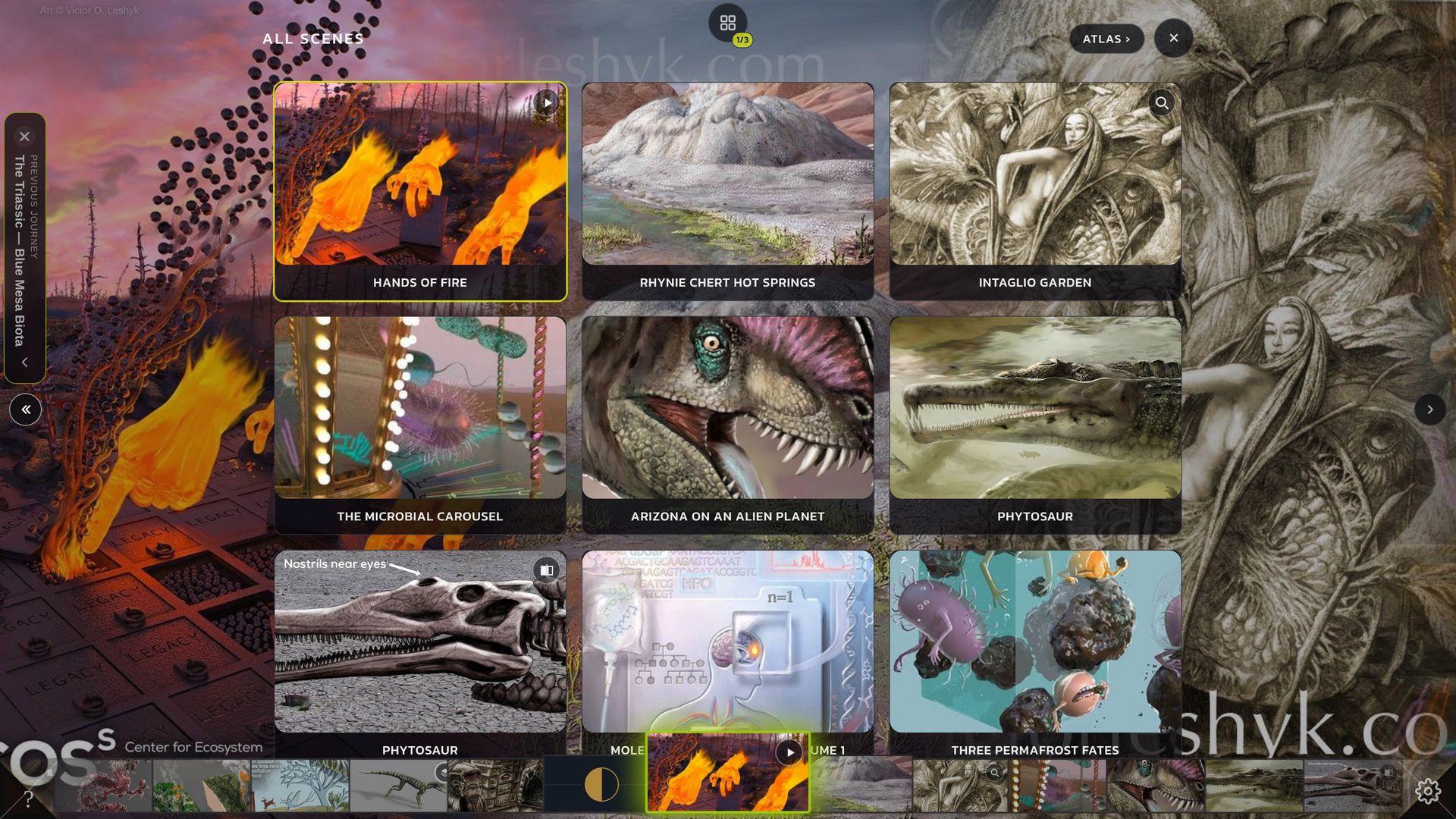
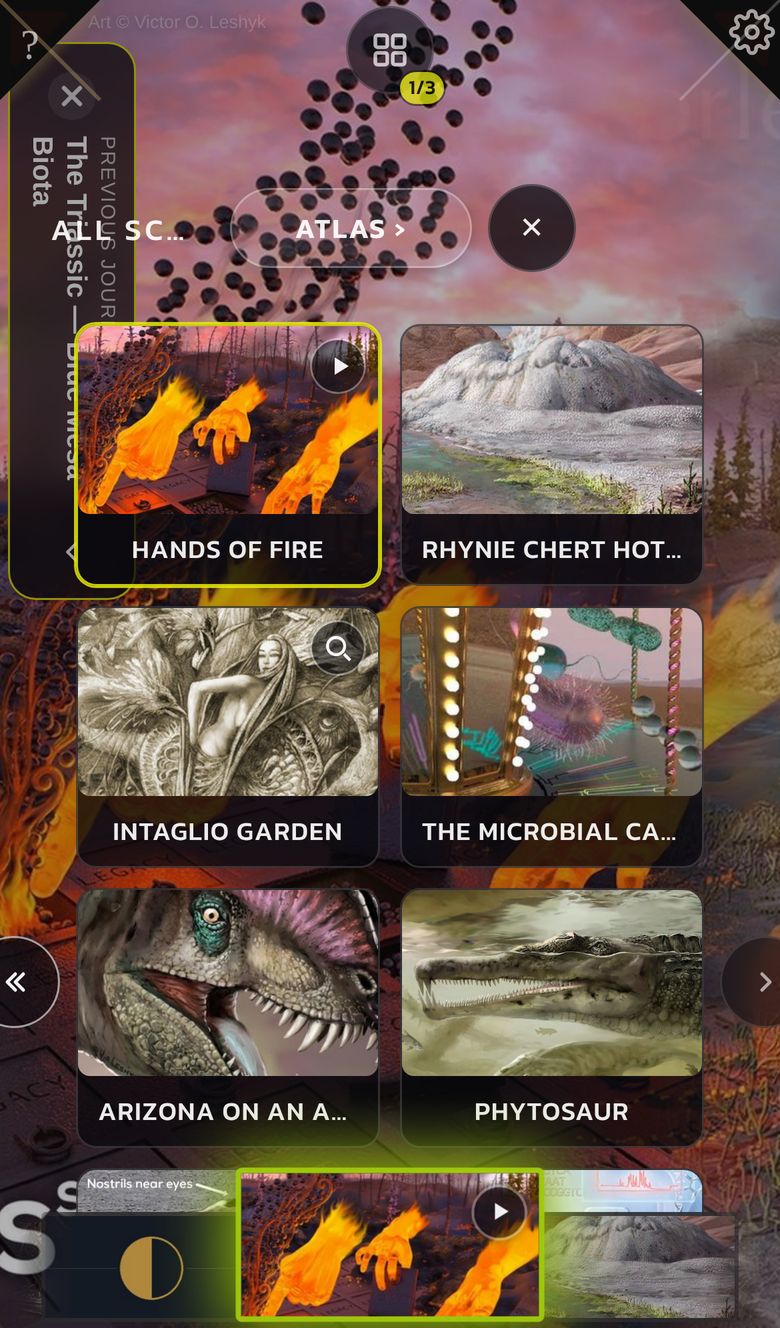
Board Mode
- Board Mode in the gear panel shows every stop as a tile; tap one to go there.
Six ways through
The same stops, lined up differently along the bottom of the screen. Choose under Navigation in the gear panel; yours may offer some of these or a set chosen by its maker.






The gear panel
Tap ⚙︎ in the corner. Everything about how the diorama behaves on your screen lives here.
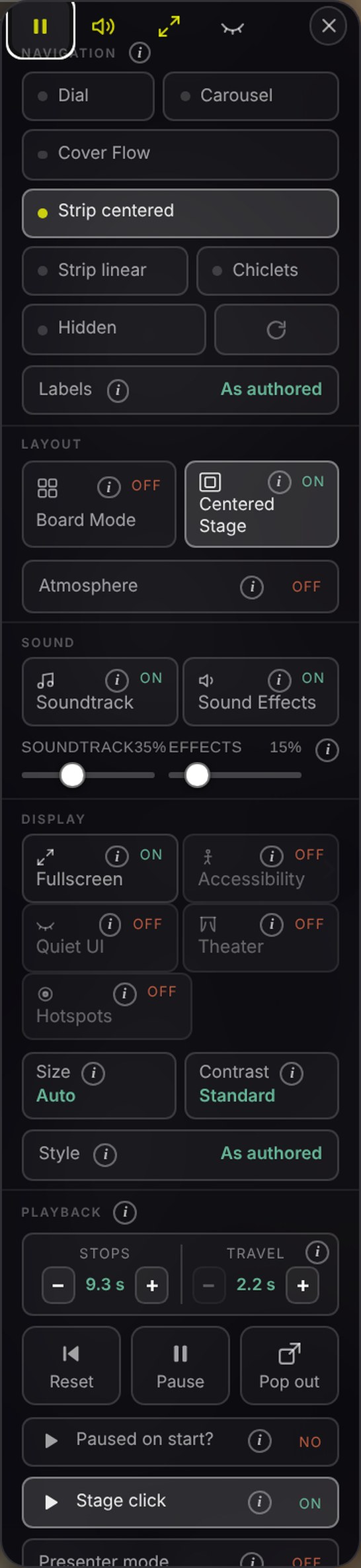
- Navigation — how the stops line up along the bottom of the screen.
- Layout — Board Mode (every stop as a tile) and Centered Stage (every card in the middle).
- If shownSound — the soundtrack and the sound effects, each on or off.
- Display — full screen, and accessibility: larger text and a simpler strip.
- If shownPlayback — pause and resume, back to the start, and Pop out, which floats these controls on the screen.
- If shownLanguage — the language of the cards.
If something looks wrong
- Open the ⚙︎ gear panel and choose Reset under Playback: the journey goes back to its start.
- Still wrong? Reload the page.
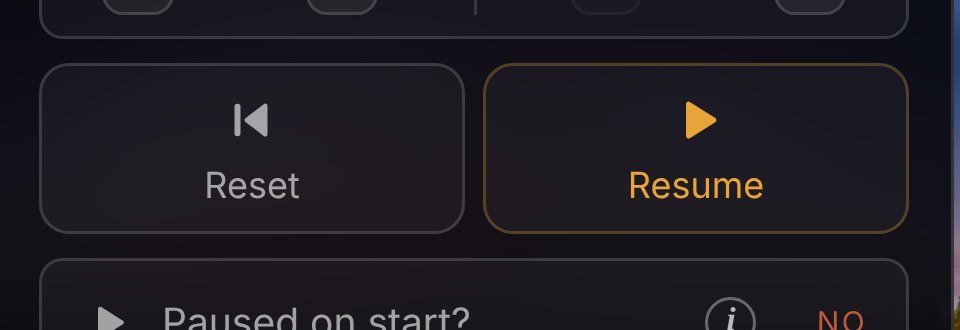
No Playback section in the gear panel? Reload the page: the diorama starts again.
Reach a person
Still stuck, or something we should know about? Messages are answered personally, usually within a day.
Your message is emailed to us and kept only so we can reply. It isn’t added to a list, sold, or shared — what this site collects.
Sent. We’ll come back to you.